Put Restaurant Specials on Your TV Screens
Show daily specials, meal bundles, events, and seasonal offers on restaurant TVs. Build a playlist once, then update what plays from your GlooTV dashboard.
Create a free account to explore GlooTV. If you choose premium, the monthly plan covers up to 3 TVs: ₹2,099 in India or $29 in the US. Payment starts only after you authorize checkout.
A restaurant starting with one promotional TV
A cafe updating daily offers or meal bundles
A group managing menus and promotions across several venues
See a demo, talk to sales, or create a free account.
Share a few details and we will follow up with the right next step — whether that is a tailored demo, a quick call, or getting started with your own account.
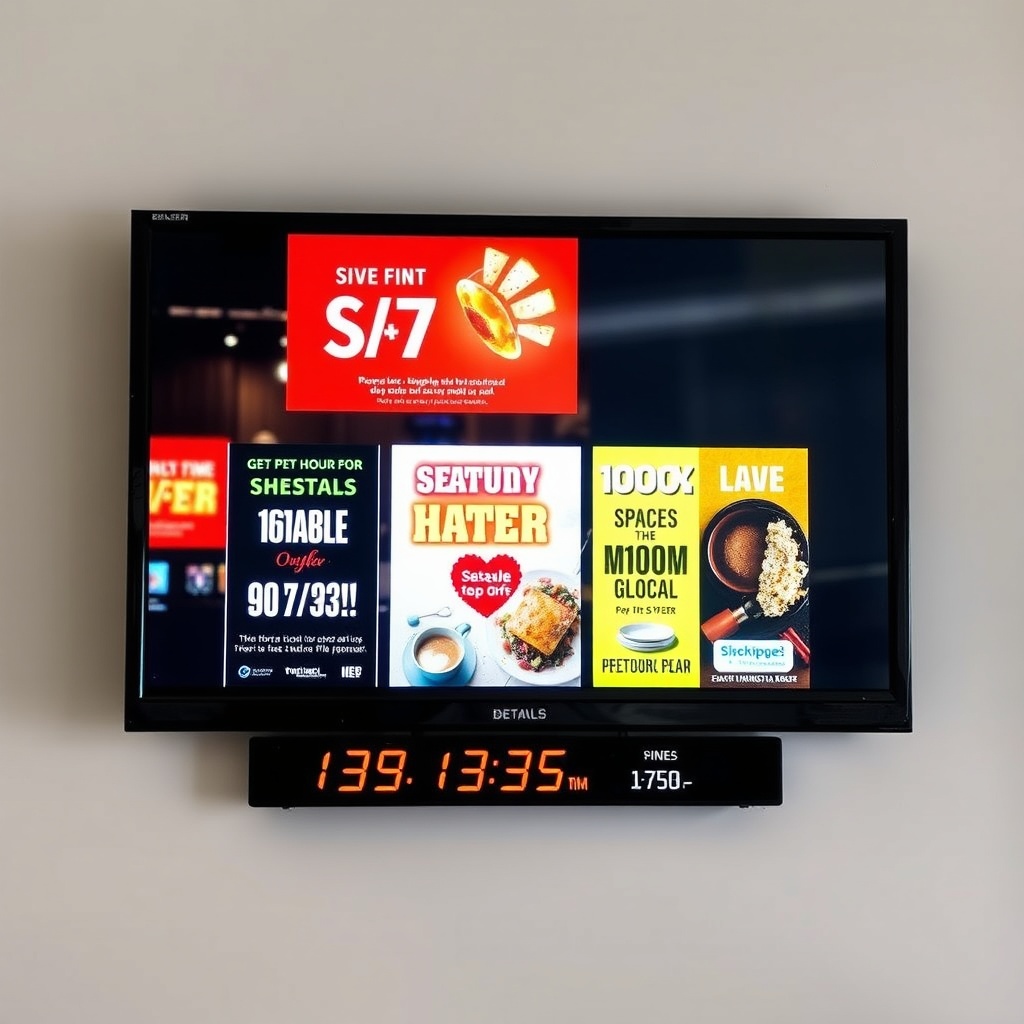
Example promotion slide in a restaurant screen rotation.
Start with a single venue and add screens as needed
Rotate promotions alongside regular menu content
Change a slide without replacing files at the TV
Update offers without changing a USB drive
What this lets you show on the screen
GlooTV lets restaurant operators arrange approved promotions, menus, photos, and announcements in a playlist. A paired TV plays the published rotation while the team manages future changes from the dashboard.
Today’s special and its price
Playlist ordering for mixed restaurant content
Meal bundles and add-ons
Remote screen updates
Happy-hour information
Reusable branded media
Seasonal menu items
Screen assignment for one or several venues
Workflow
How teams stay in control
The point is not just publishing. It is making the screen feel managed, current, and easy to run across stores or branches.
Create your account
Add your restaurant details and choose the screen you want to manage.
Add an offer slide
Use a product photo or branded poster with the price, dates, and offer terms.
Build the playlist
Mix the offer with menus, evergreen content, and other promotions.
Pair and publish
Connect a supported TV and publish the playlist from your dashboard.
Screen workflow
What the screen looks like in practice
These are the kinds of screens a team can actually publish, instead of a generic brochure-style explanation.
One TV
Start with a single venue and add screens as needed
Today’s special and its price
Reusable branded media
Meal bundles and add-ons
Screen assignment for one or several venues
One playlist
Rotate promotions alongside regular menu content
Meal bundles and add-ons
Screen assignment for one or several venues
Happy-hour information
Remote screen updates
From the dashboard
Change a slide without replacing files at the TV
Happy-hour information
Playlist ordering for mixed restaurant content
Seasonal menu items
Remote screen updates
Control layer
How teams stay in control
Playlist ordering for mixed restaurant content
Start with a single venue and add screens as needed
Remote screen updates
Rotate promotions alongside regular menu content
Reusable branded media
Change a slide without replacing files at the TV
Screen assignment for one or several venues
Start with a single venue and add screens as needed
Integrations and compatibility
Integrations
- Uploaded food photos and posters
- Playlist and TV management
- Optional approved customer review slides
Compatibility
- PlayerGlooTV app on a supported Android TV device
- Offer contentImages and videos added to a playlist
- PlanStart with free access; review screen and storage limits in the product
Operations view
Manual work vs cloud control
Manual
Replace a USB file for each new special
With GlooTV
Edit the playlist and publish remotely
Manual
A printed offer stays up after it ends
With GlooTV
Replace the screen slide when the promotion changes
Day-to-day use
What teams get out of it
What teams typically see when moving from manual screen updates to centralized publishing.
First screen
One TV
Start with a single venue and add screens as needed
Offers
One playlist
Rotate promotions alongside regular menu content
Updates
From the dashboard
Change a slide without replacing files at the TV
Common store examples
Lunch special
Show a lunch bundle between menu and brand slides during service.
Several restaurants
Reuse the main campaign and tailor prices or offer terms per location.
FAQ
Frequently asked questions
1. Can I show daily specials on an existing TV?
Yes, if the TV runs a supported GlooTV player app. Add the special to a playlist and publish it.
2. Can I start with one screen?
Yes. Start with one venue and one TV, then add screens as your setup grows.
3. Does GlooTV guarantee higher sales?
No. It helps you keep promotions visible and current; sales depend on your offer and customers.
Related pages
Show menus on a restaurant screen
Learn the core screen management workflow
Manage screens across restaurant branches
See a demo, talk to sales, or create a free account.
Share a few details and we will follow up with the right next step — whether that is a tailored demo, a quick call, or getting started with your own account.