Android TV Signage App
Run store screen content directly on Android TV with remote publishing, playlist control, and schedule automation. Pair screens once and manage them centrally after that.
Create a free account to explore GlooTV. If you choose premium, the monthly plan covers up to 3 TVs: ₹2,099 in India or $29 in the US. Payment starts only after you authorize checkout.
Teams rolling out Android TV screens across stores or branches
Operators who want simple remote updates after setup
Businesses using TVs for offers, menus, reviews, and service messaging
See a demo, talk to sales, or create a free account.
Share a few details and we will follow up with the right next step — whether that is a tailored demo, a quick call, or getting started with your own account.
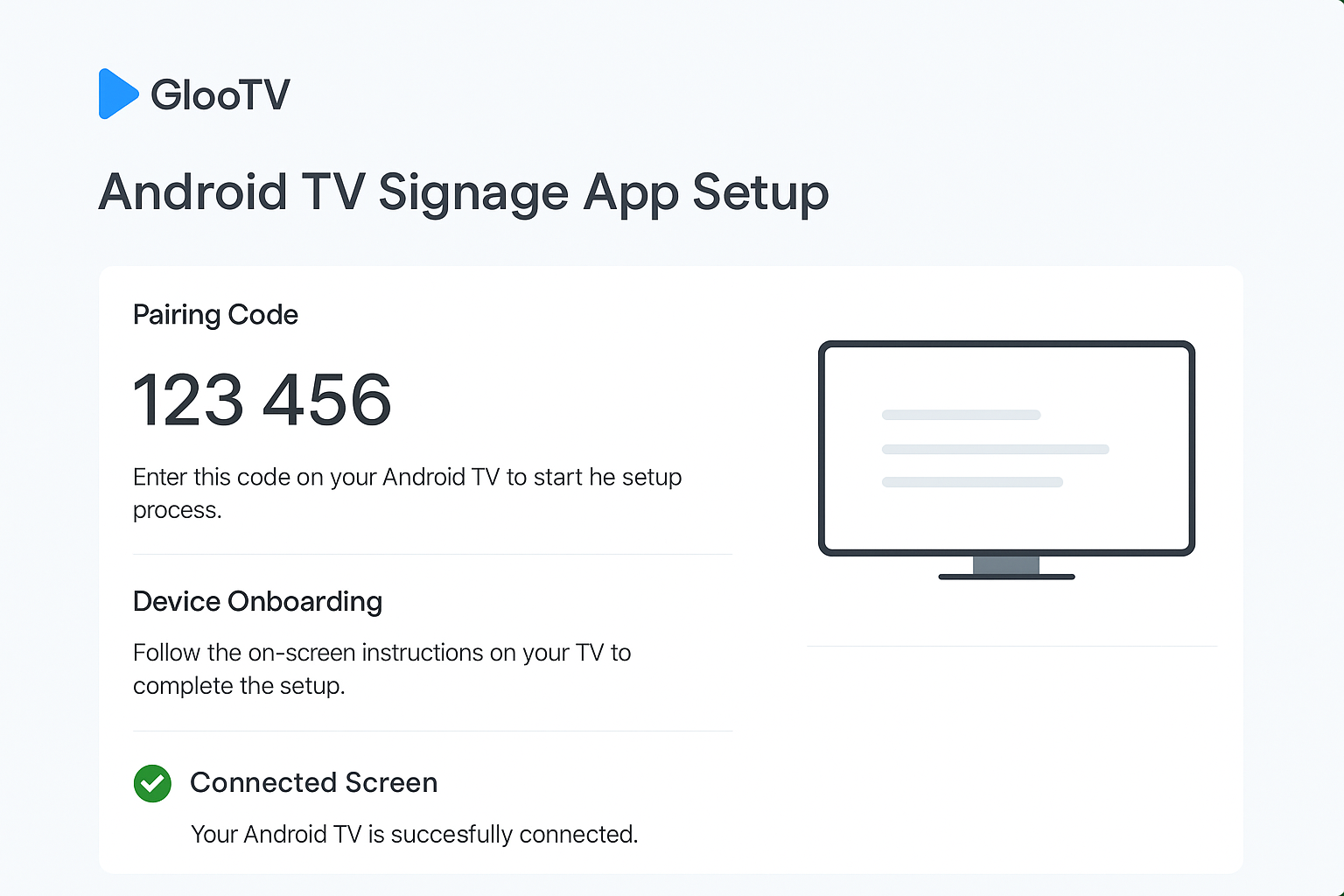
Pair Android TV screens once and update them remotely after that.
Once screens are paired, most updates move to the dashboard
New content can be pushed without local staff intervention
Screens continue with synced content when connectivity dips
Control screens without extra hardware
What this lets you show on the screen
This is the player side of GlooTV. It connects Android TV screens to your dashboard so you can publish content, schedule changes, and keep screens synced without store-by-store updates.
Product and offer playlists
Direct Android TV playback support
Menu boards and meal-time content
Central device grouping and assignment
Reviews, testimonials, and trust loops
Scheduling by time, date, and campaign window
Store announcements and service messaging
Remote republish and refresh workflows
Workflow
How teams stay in control
The point is not just publishing. It is making the screen feel managed, current, and easy to run across stores or branches.
Install and pair
Set up the app on each Android TV and connect it to your workspace.
Assign content
Map screens to the right playlists, stores, or campaign groups.
Set timing rules
Use schedules so content changes happen automatically.
Keep it current
Publish new content from the dashboard instead of touching each screen.
Screen workflow
What the screen looks like in practice
These are the kinds of screens a team can actually publish, instead of a generic brochure-style explanation.
Lower after first pairing
Once screens are paired, most updates move to the dashboard
Product and offer playlists
Scheduling by time, date, and campaign window
Menu boards and meal-time content
Remote republish and refresh workflows
Fast remote rollout
New content can be pushed without local staff intervention
Menu boards and meal-time content
Remote republish and refresh workflows
Reviews, testimonials, and trust loops
Role-based control for teams and managers
Stable store playback
Screens continue with synced content when connectivity dips
Reviews, testimonials, and trust loops
Role-based control for teams and managers
Store announcements and service messaging
Playback continuity during short outages
Control layer
How teams stay in control
Direct Android TV playback support
Once screens are paired, most updates move to the dashboard
Central device grouping and assignment
New content can be pushed without local staff intervention
Scheduling by time, date, and campaign window
Screens continue with synced content when connectivity dips
Remote republish and refresh workflows
Once screens are paired, most updates move to the dashboard
Integrations and compatibility
Integrations
- Google Sheets or CSV menu feeds
- POS and catalog sync via API or structured data feed
- Google Reviews and social content sync
- QR-based customer ordering links
Compatibility
- Android TV appNative app for Android TV and Google TV devices
- Screen orientationLandscape and portrait layouts with safe zones
- Multi-location controlPush updates by location, region, or all screens
- Offline continuityLast published playlist stays on-screen during outages
- Device groupingAssign one or many Android TV screens to the same playlist set
Operations view
Manual work vs cloud control
Manual
Staff load content onto each TV
With GlooTV
Content is assigned and published from one dashboard
Manual
No central status view
With GlooTV
Teams can manage grouped screens centrally
Manual
Timing changes depend on local staff
With GlooTV
Schedules drive updates automatically
Manual
Every new campaign creates store work
With GlooTV
New campaigns can be pushed remotely
Day-to-day use
What teams get out of it
What teams typically see when moving from manual screen updates to centralized publishing.
Setup effort
Lower after first pairing
Once screens are paired, most updates move to the dashboard
Update speed
Fast remote rollout
New content can be pushed without local staff intervention
Operational reliability
Stable store playback
Screens continue with synced content when connectivity dips
Common store examples
Retail promotion rollout
Push a new weekend campaign to every paired screen in one publish cycle.
Restaurant screen switching
Run breakfast and lunch changes without touching each TV.
Waiting-area messaging
Keep service, trust, and queue content rotating throughout the day.
FAQ
Frequently asked questions
1. Can I run digital signage on Android TV?
Yes. GlooTV runs on Android TV so screens can be paired and controlled remotely.
2. Do I need extra hardware?
For supported Android TV devices, many teams can run directly on the screen without extra hardware.
3. Can I control multiple TVs from one place?
Yes. Devices can be grouped by location or campaign and managed from one dashboard.
4. Can I schedule different content throughout the day?
Yes. Schedules can switch content by time of day or campaign window.
5. Does this work as an Android signage player for restaurant menu boards and retail promos?
Yes. Teams use it as an Android signage player for restaurant menu boards, retail campaigns, review loops, and service-area screens.
6. What if a screen loses connection?
Previously synced content keeps playing until the screen reconnects.
7. What content can I run?
Most teams run offers, products, menus, reviews, posters, and service messaging on Android TV screens.
Related pages
The main software overview for screen management
Retail-specific workflows and store campaigns
No extra hardware on compatible Android TV and Google TV devices
Comparison page for TV and signage buying decisions
See a demo, talk to sales, or create a free account.
Share a few details and we will follow up with the right next step — whether that is a tailored demo, a quick call, or getting started with your own account.