Show Promotions on TV
Use store TVs to run promotions, sale windows, bundles, and flash offers without depending on manual poster swaps. Keep offer screens current from one shared workflow.
Create a free account to explore GlooTV. If you choose premium, the monthly plan covers up to 3 TVs: ₹2,099 in India or $29 in the US. Payment starts only after you authorize checkout.
Retail teams running weekly or seasonal promotions
Store operators who need timed offer windows and flash-sale visibility
Marketing teams that want promotions to reach every location quickly
See a demo, talk to sales, or create a free account.
Share a few details and we will follow up with the right next step — whether that is a tailored demo, a quick call, or getting started with your own account.
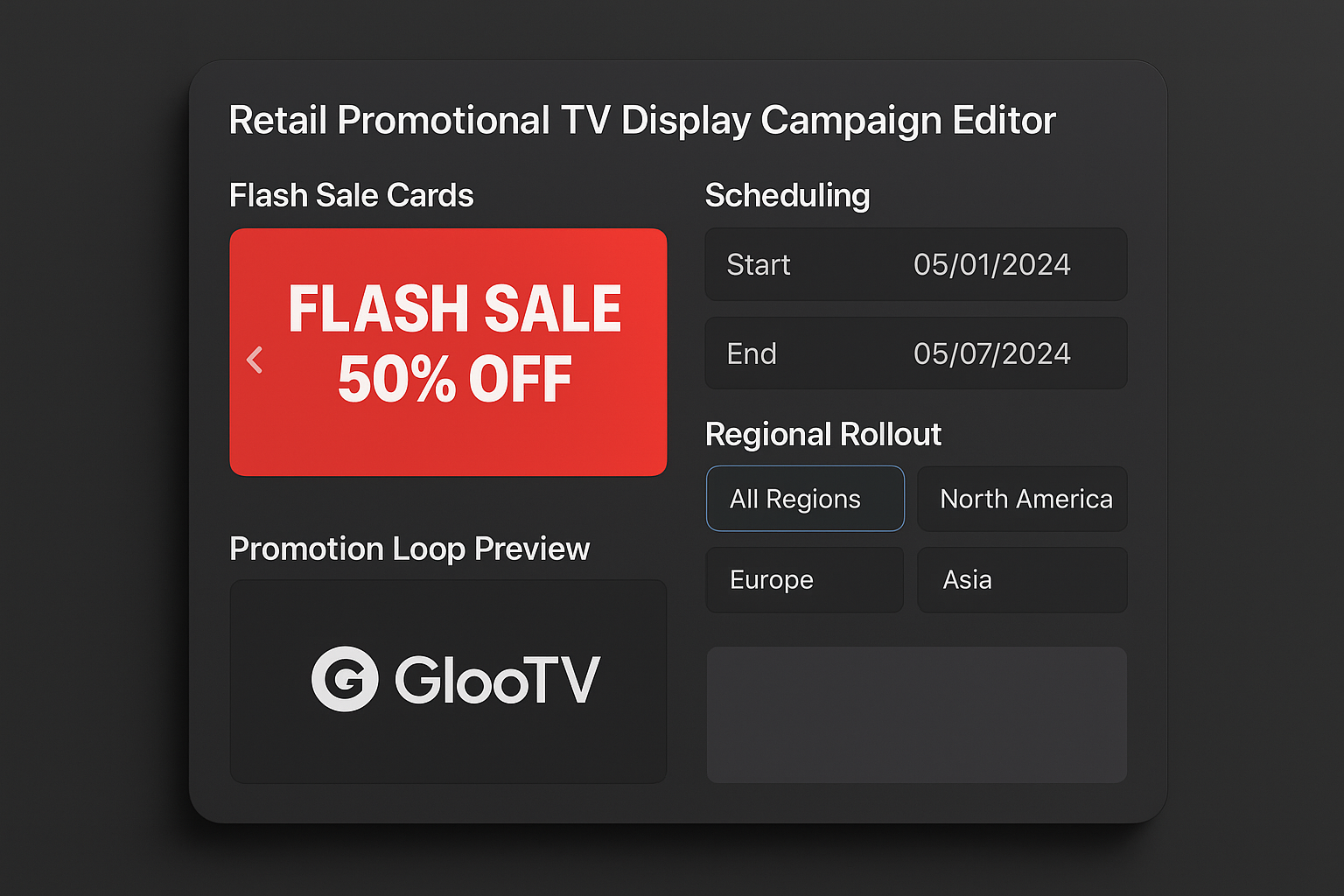
Run sale windows, bundles, and timed offers on store TVs from one dashboard.
Promotions can reach screens more quickly through one workflow
Teams can define promotion windows instead of relying on ad-hoc changes
Most screen refreshes no longer depend on store staff actions
Use TVs for offers and campaigns
What this lets you show on the screen
This is for retailers who want TVs to drive offers and urgency. It helps teams run flash sales, promotional windows, bundle messaging, and seasonal campaigns on store screens.
Flash-sale and limited-time offers
Offer-focused playlist and campaign support
Bundle and multi-buy promotions
Daypart and date-window scheduling
Weekend and seasonal campaign loops
Regional and store-level targeting
Promo slides mixed with products and reviews
Fast refresh workflow for live promotions
Workflow
How teams stay in control
The point is not just publishing. It is making the screen feel managed, current, and easy to run across stores or branches.
Create the offer blocks
Prepare sale, bundle, discount, and campaign messages for TV display.
Set the campaign timing
Choose when promotions start, stop, or shift through the day.
Target the right stores
Publish nationally, regionally, or only to selected locations.
Refresh without local work
Swap live offer content quickly from the central dashboard.
Screen workflow
What the screen looks like in practice
These are the kinds of screens a team can actually publish, instead of a generic brochure-style explanation.
Faster than manual swaps
Promotions can reach screens more quickly through one workflow
Flash-sale and limited-time offers
Regional and store-level targeting
Bundle and multi-buy promotions
Fast refresh workflow for live promotions
Better timing discipline
Teams can define promotion windows instead of relying on ad-hoc changes
Bundle and multi-buy promotions
Fast refresh workflow for live promotions
Weekend and seasonal campaign loops
Android TV-compatible playback
Less local effort
Most screen refreshes no longer depend on store staff actions
Weekend and seasonal campaign loops
Android TV-compatible playback
Promo slides mixed with products and reviews
Fallback playback during connectivity issues
Control layer
How teams stay in control
Offer-focused playlist and campaign support
Promotions can reach screens more quickly through one workflow
Daypart and date-window scheduling
Teams can define promotion windows instead of relying on ad-hoc changes
Regional and store-level targeting
Most screen refreshes no longer depend on store staff actions
Fast refresh workflow for live promotions
Promotions can reach screens more quickly through one workflow
Integrations and compatibility
Integrations
- Google Sheets or CSV menu feeds
- POS and catalog sync via API or structured data feed
- Google Reviews and social content sync
- QR-based customer ordering links
Compatibility
- Android TV appNative app for Android TV and Google TV devices
- Screen orientationLandscape and portrait layouts with safe zones
- Multi-location controlPush updates by location, region, or all screens
- Offline continuityLast published playlist stays on-screen during outages
Operations view
Manual work vs cloud control
Manual
Offers depend on local poster replacement
With GlooTV
Promotions go live through centralized screen publishing
Manual
Campaign timing varies by store
With GlooTV
Schedules keep launch and expiry consistent
Manual
Promo screens are hard to refresh fast
With GlooTV
Offer content can be swapped quickly from the dashboard
Manual
Stores mix offers inconsistently
With GlooTV
Central teams keep the offer story aligned
Day-to-day use
What teams get out of it
What teams typically see when moving from manual screen updates to centralized publishing.
Offer launch speed
Faster than manual swaps
Promotions can reach screens more quickly through one workflow
Campaign control
Better timing discipline
Teams can define promotion windows instead of relying on ad-hoc changes
Store workload
Less local effort
Most screen refreshes no longer depend on store staff actions
Common store examples
Weekend promo burst
Switch screens into offer-heavy mode only during peak traffic windows.
Festival campaign rollout
Launch a seasonal promotion across many stores with consistent timing.
Bundle message refresh
Replace a live promotion quickly when the offer changes mid-campaign.
FAQ
Frequently asked questions
1. Can I show promotions on TV in my store?
Yes. GlooTV can run promotional loops, flash offers, and campaign screens on store TVs.
2. Can I schedule offers by time and date?
Yes. Promotions can be controlled by campaign window, daypart, and schedule rules.
3. Can different stores run different promotions?
Yes. Stores, regions, or groups can receive different promotional playlists.
4. Can I mix promotions with products and reviews?
Yes. Promotional content can sit beside product highlights and review slides in one loop.
5. Does this work on Android TV?
Yes. Android TV is supported for promotional screen playback.
6. What if a promotion needs to change quickly?
Live screen content can be replaced through the central dashboard rather than by manual store work.
Related pages
Product display workflows for store TVs
Trust-content and testimonial screen workflows
The broader software page for store-screen control
Compare consumer TVs and commercial signage setups
See a demo, talk to sales, or create a free account.
Share a few details and we will follow up with the right next step — whether that is a tailored demo, a quick call, or getting started with your own account.