On this page
The short version
- The pen drive isn't cheap. Its real cost is stale screens: offers that ended, prices that changed, the wrong file on the wrong TV.
- Updating by hand grows with every screen and every change. Remote updates take the same few minutes for one screen or fifty.
- The question that matters isn't “did we send it?” but “is it actually playing?”. Insist on software that tells you.
- Start with the TVs you already have, give each screen one job, and run a two-week pilot in one store.
Walk into almost any phone shop, café or clinic and look at the TV. There's a good chance it's showing a festive offer that ended two weeks ago, a menu with an old price, or a slideshow with black bars because someone exported it from a phone.
Nobody decided that. It's what happens when the only way to change a screen is a pen drive and someone with the time to walk over, find the remote and hope the right file is on it.
I think the pen drive is the most expensive part of most in-store signage. Not because of what it costs, but because of what it lets slip.
The pen drive routine doesn't scale
For one TV in one shop, a pen drive is fine. The trouble starts when you have a few screens per store and a few stores. Every change, whether a new price, a weekend offer or a holiday timing, becomes a small trip, repeated per screen.
Here's a deliberately simple model. Assume a pen drive update takes about 10 minutes per screen once you count exporting the file, walking over and checking it plays, and that you change content once a week. Updating remotely takes a couple of minutes, however many screens you have.
Staff hours a year spent updating screens
Weekly updates. Pen drive: ~10 minutes per screen. Remote: ~2 minutes per update.
A simple model to show scale, not measured customer data. Plug in your own minutes per screen and update frequency.
At 20 screens that's over 170 hours a year, roughly a month of someone's working time, spent carrying files. And that's the optimistic version, where nobody forgets.
The bigger cost doesn't show up in hours. When updating is a chore, people update less. The weekend offer never goes up. The price change waits until Monday. The screen that should be selling becomes wallpaper.
“Sent” is not the same as “playing”
The second problem is that nobody knows what's actually on the screens. Head office approves a new offer, emails it to the stores, and assumes it went up. Some stores do it the same day. Some do it next week. One store's TV has been switched to a cricket match since Saturday.
The most important question in digital signage isn't “did we send it?” It's “is it playing right now?”
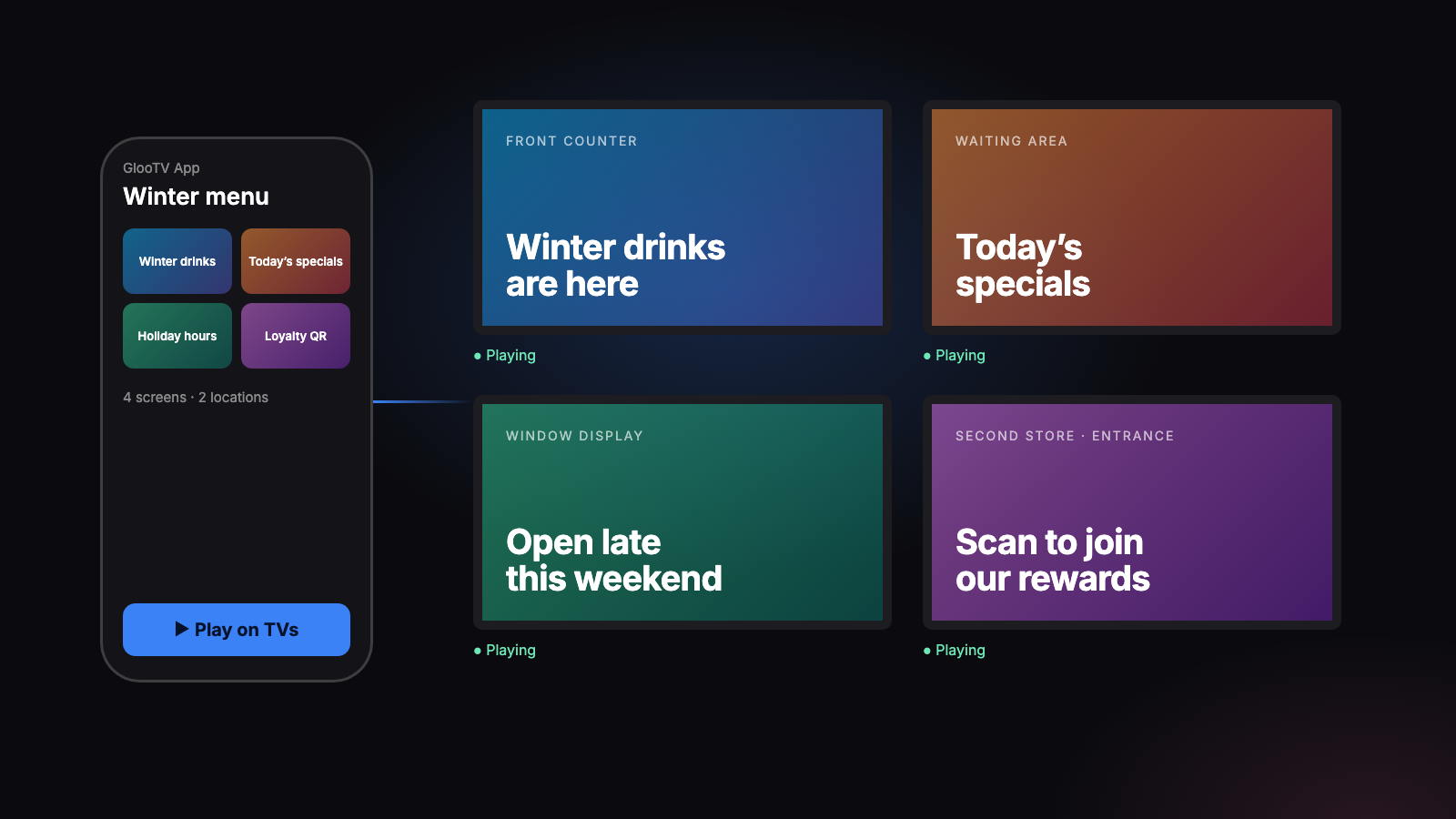
This is where I'd be strict with any software, including ours. Plenty of tools will tell you an update was sent. Fewer tell you what the TV is reporting back. In the GlooTV App we treat those as different states on purpose: a command being sent is not the same as a screen confirming playback, and the dashboard shows both.
What to do instead
You don't need to start by buying new screens or media players. Most businesses can begin with the TVs already on the wall.
- 1
List every screen and give it one jobDay 1
The counter TV sells today's offers. The waiting-area TV answers questions and shows reviews. The window screen pulls people in. A screen that tries to do everything does nothing well.
- 2
Connect the screens you already haveDay 1–2
Install the GlooTV App on supported Android TVs or players and pair each screen to your account. Check which players are supported before buying anything.
- 3
Build one playlist per job, not per TVWeek 1
Make a playlist for “counter”, one for “waiting area”, and assign screens to them. One change to the playlist updates every screen that uses it.
- 4
Pilot in one store for two weeksWeeks 1–2
Change something real every few days: a price, an offer, a timing. Check each screen reports that it's playing. Fix naming and access before adding more stores.
- 5
Roll out store by storeWeek 3+
Add locations one at a time. Decide who can edit what: head office owns brand playlists, store managers update local offers.
| Pen drive | GlooTV App | |
|---|---|---|
| Changing one offer | A trip to every screen | Once, for every screen |
| Knowing what's on screen | Walk over and look | Each screen reports what's playing |
| Wrong or old file | Common, and invisible until a customer notices | One playlist, one current version |
| Multiple stores | Depends on someone at each store | Managed centrally, edited locally |
| Upfront cost | A pen drive | Uses the TVs you already have |
The screen is part of the store
The best-run stores I see treat their TVs like their shelves: something you check every morning, not something installed once and forgotten. The technology for that is no longer complicated. What changes it is deciding that a screen showing last month's offer is as unacceptable as a shelf with last month's price tag.
Five-minute screen audit for your stores
- Walk past every screen and note what it's showing right now
- Mark anything out of date: ended offers, old prices, past events
- Write down how each screen gets updated, and who does it
- Count how many screens had a black bar, a frozen frame or a TV channel
- Pick one store to pilot remote updates for two weeks
Questions we get asked
Can I use my existing TV for digital signage?
Often, yes. The GlooTV App runs on supported Android TVs and players, so many businesses start with the screens already installed. Check the supported devices on the download page before buying new hardware.
How do I update multiple store TVs at once?
Group screens by the job they do and assign them to the same playlist. When you change the playlist in the GlooTV App, every screen that uses it gets the update, across locations.
How do I know the right content is playing on each TV?
Use software that shows what each screen reports, not just whether an update was sent. The GlooTV App shows each connected screen's status, so you can spot a TV that's offline or showing something else.
Is a pen drive really a problem for one or two screens?
For a single screen that rarely changes, it can be fine. The cost appears when you have several screens, change content often, or rely on staff at different locations to make updates.
Written by
Akhil Singh
Gloo
Akhil builds Gloo, the software behind Gloo Local and the GlooTV App, and works with multi-location brands on how they show up on Google and on the screens inside their stores.
Published · Last updated