Multi-Location TV Screen Management
Manage TV screen content across multiple store locations from one central dashboard. Push content to one store, a regional group, or every screen at once. Schedule campaigns, update menus, and keep all locations aligned without visiting each site.
Create a free account to explore GlooTV. If you choose premium, the monthly plan covers up to 3 TVs: ₹2,099 in India or $29 in the US. Payment starts only after you authorize checkout.
Retail chains or franchise networks that need consistent screen content across stores
Restaurant groups managing menus, specials, and review content across branches
Regional marketing teams running campaigns that need to land on time at every location
See a demo, talk to sales, or create a free account.
Share a few details and we will follow up with the right next step — whether that is a tailored demo, a quick call, or getting started with your own account.
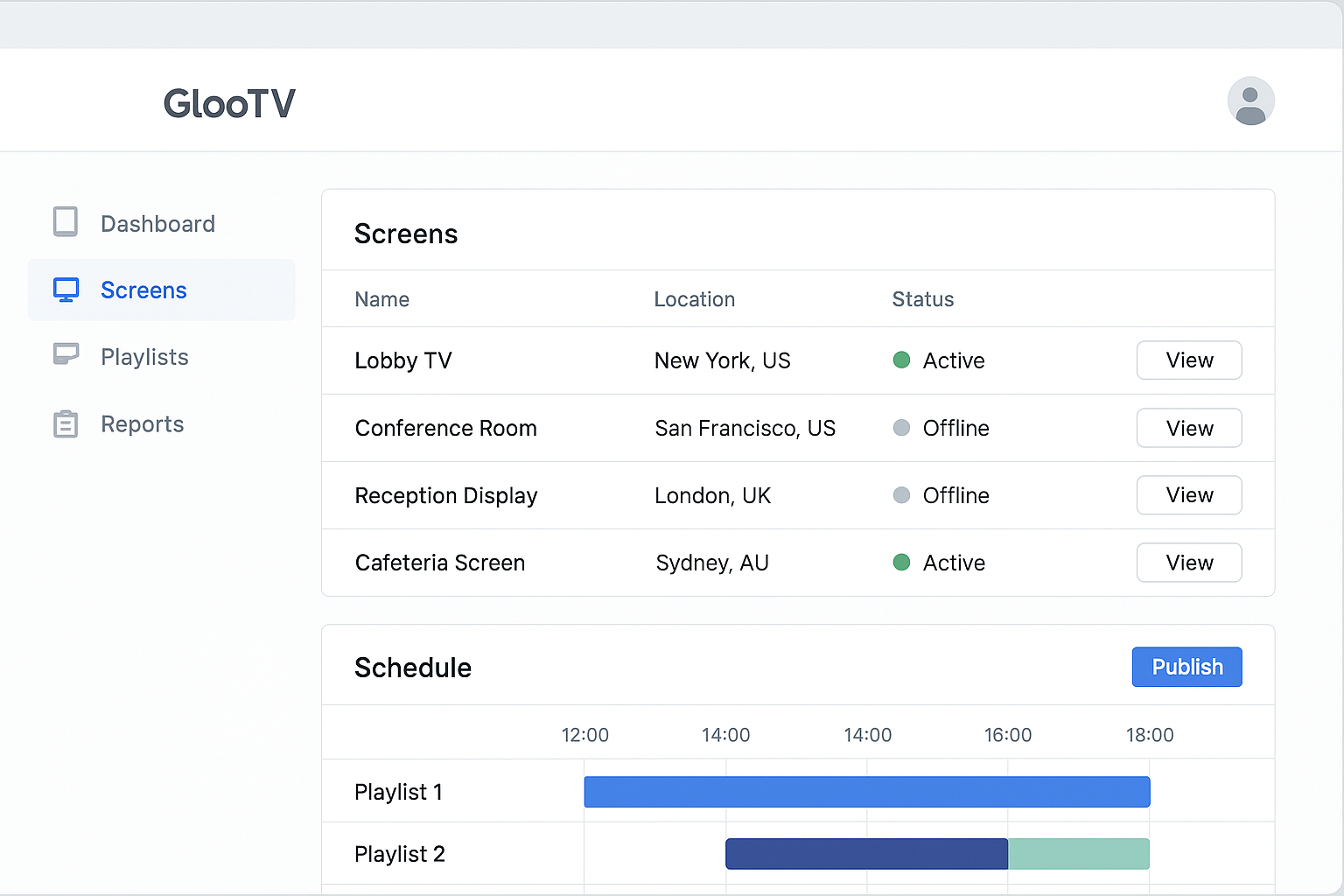
Push content updates to one location, a region, or every store at once from one dashboard.
Campaigns can reach every screen in one publish cycle rather than sequential store visits or calls
Central publishing reduces the drift between approved content and what screens actually show
Most content updates move from local staff to the central dashboard
One dashboard for every store screen
What this lets you show on the screen
This is the central control layer for businesses that run screens across more than one location. Instead of sending someone to each store or asking local staff to update TVs, a central team can publish content to any combination of screens from one dashboard and apply schedules that work across the whole estate.
Shared campaign content pushed to all stores at once
Central dashboard for all locations and screens
Region-specific menu or pricing variations
Screen grouping by store, region, or campaign cluster
Location-level announcements or local event content
Single publish action for one, several, or all screens
Scheduled campaign windows that start and stop on time
Location-specific content overrides alongside shared templates
Workflow
How teams stay in control
The point is not just publishing. It is making the screen feel managed, current, and easy to run across stores or branches.
Install and pair at each location
Install GlooTV on Android TV screens at each site and pair them to the central workspace during setup.
Group screens logically
Assign screens to locations, regions, or campaign groups so you can target the right set when publishing.
Set shared and location-specific content
Run the same content everywhere, or apply different playlists to specific stores or regions as needed.
Schedule and publish centrally
Push a single publish action to reach one location, a group, or every screen without any local staff involvement.
Screen workflow
What the screen looks like in practice
These are the kinds of screens a team can actually publish, instead of a generic brochure-style explanation.
Faster than store-by-store updates
Campaigns can reach every screen in one publish cycle rather than sequential store visits or calls
Shared campaign content pushed to all stores at once
Single publish action for one, several, or all screens
Region-specific menu or pricing variations
Location-specific content overrides alongside shared templates
Better alignment across locations
Central publishing reduces the drift between approved content and what screens actually show
Region-specific menu or pricing variations
Location-specific content overrides alongside shared templates
Location-level announcements or local event content
Campaign scheduling by date range and daypart
Less screen-management work per store
Most content updates move from local staff to the central dashboard
Location-level announcements or local event content
Campaign scheduling by date range and daypart
Scheduled campaign windows that start and stop on time
Android TV deployment with remote pairing and assignment
Control layer
How teams stay in control
Central dashboard for all locations and screens
Campaigns can reach every screen in one publish cycle rather than sequential store visits or calls
Screen grouping by store, region, or campaign cluster
Central publishing reduces the drift between approved content and what screens actually show
Single publish action for one, several, or all screens
Most content updates move from local staff to the central dashboard
Location-specific content overrides alongside shared templates
Campaigns can reach every screen in one publish cycle rather than sequential store visits or calls
Integrations and compatibility
Integrations
- Google Sheets or CSV menu feeds
- POS and catalog sync via API or structured data feed
- Google Reviews and social content sync
- QR-based customer ordering links
Compatibility
- Android TV appNative app for Android TV and Google TV devices
- Screen orientationLandscape and portrait layouts with safe zones
- Multi-location controlPush updates by location, region, or all screens
- Offline continuityLast published playlist stays on-screen during outages
- Screen groupingAssign screens to stores, regions, or campaign clusters
- Content targetingPush shared or location-specific content independently
Operations view
Manual work vs cloud control
Manual
Staff visit or call each store to update screens
With GlooTV
Central dashboard pushes updates to all stores at once
Manual
Campaign launch timing varies by location
With GlooTV
Schedules make every screen change at the same time
Manual
No visibility into what is playing at each store
With GlooTV
Dashboard shows which screen groups are assigned and current
Manual
Local staff improvise content when instructions are unclear
With GlooTV
Central team controls what plays and when
Day-to-day use
What teams get out of it
What teams typically see when moving from manual screen updates to centralized publishing.
Campaign launch speed
Faster than store-by-store updates
Campaigns can reach every screen in one publish cycle rather than sequential store visits or calls
Content consistency
Better alignment across locations
Central publishing reduces the drift between approved content and what screens actually show
Local team effort
Less screen-management work per store
Most content updates move from local staff to the central dashboard
Common store examples
Weekend campaign rollout
Push a promotion to every selected store in one action the night before without contacting local teams.
Regional menu variation
Keep a shared menu structure while pushing different pricing or specials to specific regions.
Emergency screen update
Replace content on all screens instantly when a campaign needs to change or a product is unavailable.
FAQ
Frequently asked questions
1. Can I manage TV screens across multiple store locations from one place?
Yes. GlooTV lets you group screens by location, region, or cluster and publish content to any combination from one dashboard.
2. Can I push different content to different stores?
Yes. You can run shared content across all stores while applying location-specific playlists, menus, or promotions where needed.
3. Does every store need its own account or login?
No. One workspace can manage screens across all locations. Access can be shared with regional managers or store staff at the appropriate permission level.
4. Can I schedule campaigns to start and stop automatically?
Yes. Date ranges, dayparts, and campaign windows can be set in advance so screens change without manual intervention.
5. What happens if one store loses internet connectivity?
That screen continues playing the last published content until connectivity returns and the next sync completes.
6. How do I pair screens at a new location?
Install GlooTV on the Android TV at the new location and pair it to your central workspace using the setup code. After pairing, the screen is manageable from the dashboard like any other.
7. Can I update just one store without affecting others?
Yes. Publishing is targeted — you choose which location, group, or individual screen receives the update.
8. Is this useful for franchise networks?
Yes. Franchisors can run brand-approved content across all franchise screens while allowing franchisees to publish location-specific content within defined boundaries.
Related pages
The main overview page for store-screen management software
Android TV installation, pairing, and setup details
Run campaigns and launches across all your store screens
Run signage directly on compatible Android TV and Google TV devices
See a demo, talk to sales, or create a free account.
Share a few details and we will follow up with the right next step — whether that is a tailored demo, a quick call, or getting started with your own account.