Before you start
Google Drive import brings an existing image or video into the GlooTV Promos library. Importing does not put the item on a TV automatically. After the import finishes, add the promo to a playlist and publish or start that playlist on the required TVs.
- Single Upload is available for importing exactly one image or video at a time.
- Bulk Upload is a Premium feature and supports up to 50 files in one selection.
- Each file must be a supported image or video and no larger than 150 MB. A lower club-specific limit applies when configured.
- A club can connect more than one Google account. Connected accounts are available to authorized makers working in that club.
- For agency users, each club keeps its own account connections and imported promos so media is not mixed across client clubs.
Google only shares the files you choose
Import one promo
- 1
Open Upload from the GlooTV sidebar.
- 2
Select Import from Google Drive.
- 3
Choose a connected Google account, or select Connect another account and finish Google sign-in.
- 4
Select Choose Drive files, choose one supported image or video, and confirm the Google picker.
- 5
Review the file name, type, and size, then start the import.
- 6
Keep the progress panel open or return to it while GlooTV downloads, checks, stores, and creates the promo.
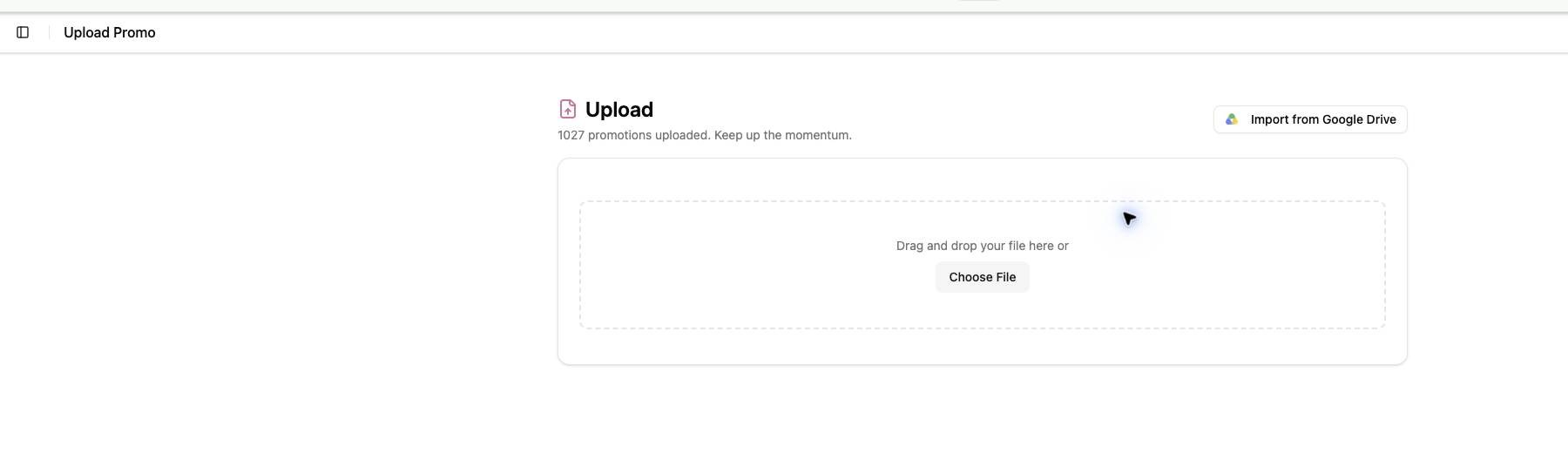
The screenshot or diagram for this article has not been added yet.
Import multiple promos with Premium
- 1
Open Bulk Upload from the GlooTV sidebar. The club must have Premium access.
- 2
Select Import from Google Drive and choose the Google account that owns the files.
- 3
Select up to 50 supported images and videos in the Google picker.
- 4
Remove anything you do not want to import, then confirm the batch.
- 5
Follow the overall progress and each file status. A failed file can be retried without repeating successful files.
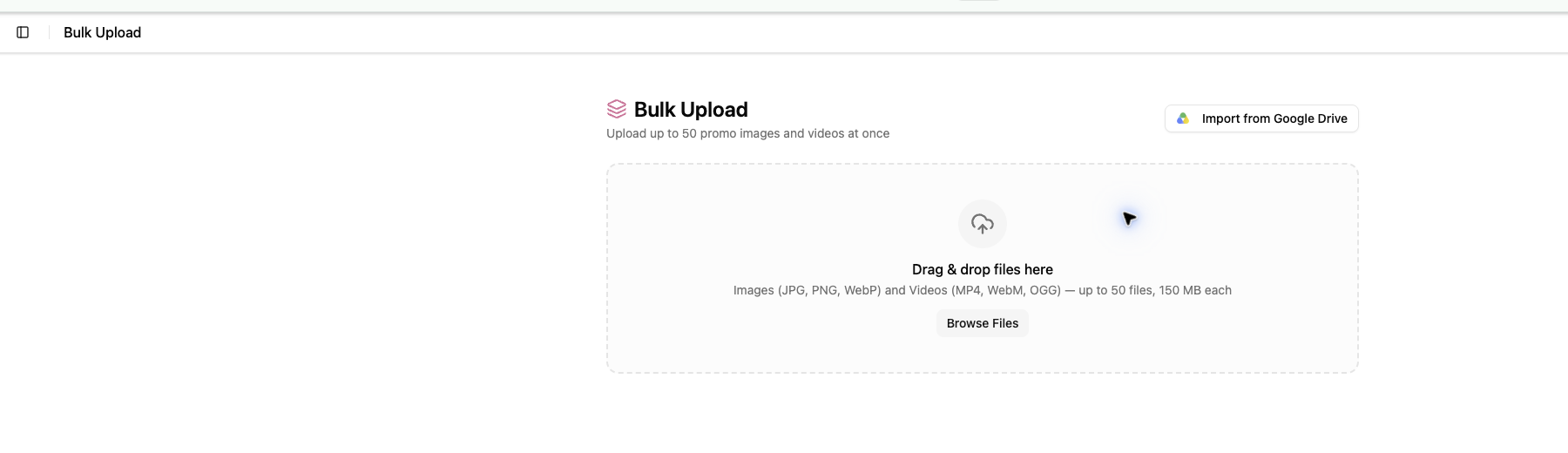
The screenshot or diagram for this article has not been added yet.
Large files can take longer
File requirements and common rejections
| File or condition | What GlooTV does |
|---|---|
| Supported image or video, within the limit | Shows it for confirmation and imports it into Promos. |
| File above 150 MB or above the club limit | Rejects it before import and explains the applicable limit. |
| Google Docs, Sheets, Slides, folder, or shortcut | Does not import it as a promo. Export it as a supported media file first. |
| File changed after selection | Checks the latest Drive version before download so stale details are not silently imported. |
| File already imported from the same account and version | Offers the existing promo for reuse; create a copy only when a separate promo is intentional. |
| Owner removed access or Google authorization expired | Marks the account for reconnection and asks a maker to connect it again. |
Find and publish the finished promos
- 1
Open Promotions after the import reports Complete.
- 2
Open Filters and select Google Drive to narrow the library to imported Drive promos.
- 3
Check the “Imported from Google Drive” source label on the promo card.
- 4
Open the promo and select Add to Playlist, then choose one or more playlists.
- 5
Use TV Management to start the playlist or confirm that the assigned TV has refreshed it.
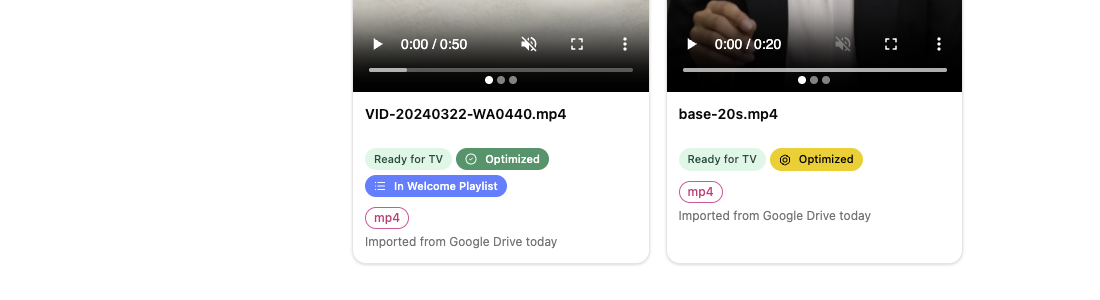
The screenshot or diagram for this article has not been added yet.
Import complete does not mean on air
Account and progress troubleshooting
Google access was revoked or expired. Connect the account again, then retry the failed file.
Use Connect another account if a different owner should provide the file.
One or more files failed a size, type, permission, download, or storage check.
Open the item message, correct the cause, and retry only the failed file.
GlooTV is downloading, checking, or storing the selected media. Progress continues on the server.
Wait for a terminal result before starting another copy of the same import.
The promo was created or an unchanged existing promo was reused.
Open Promotions, add the item to a playlist, and verify the TV outcome.