Watch the complete Vega OS installation
This recording was captured from a physical Vega OS Fire TV Stick using the public Amazon Appstore listing.
Step 1: Search for GlooTV
- 1
Open Amazon Appstore from the Fire TV menu.
- 2
Select Search.
- 3
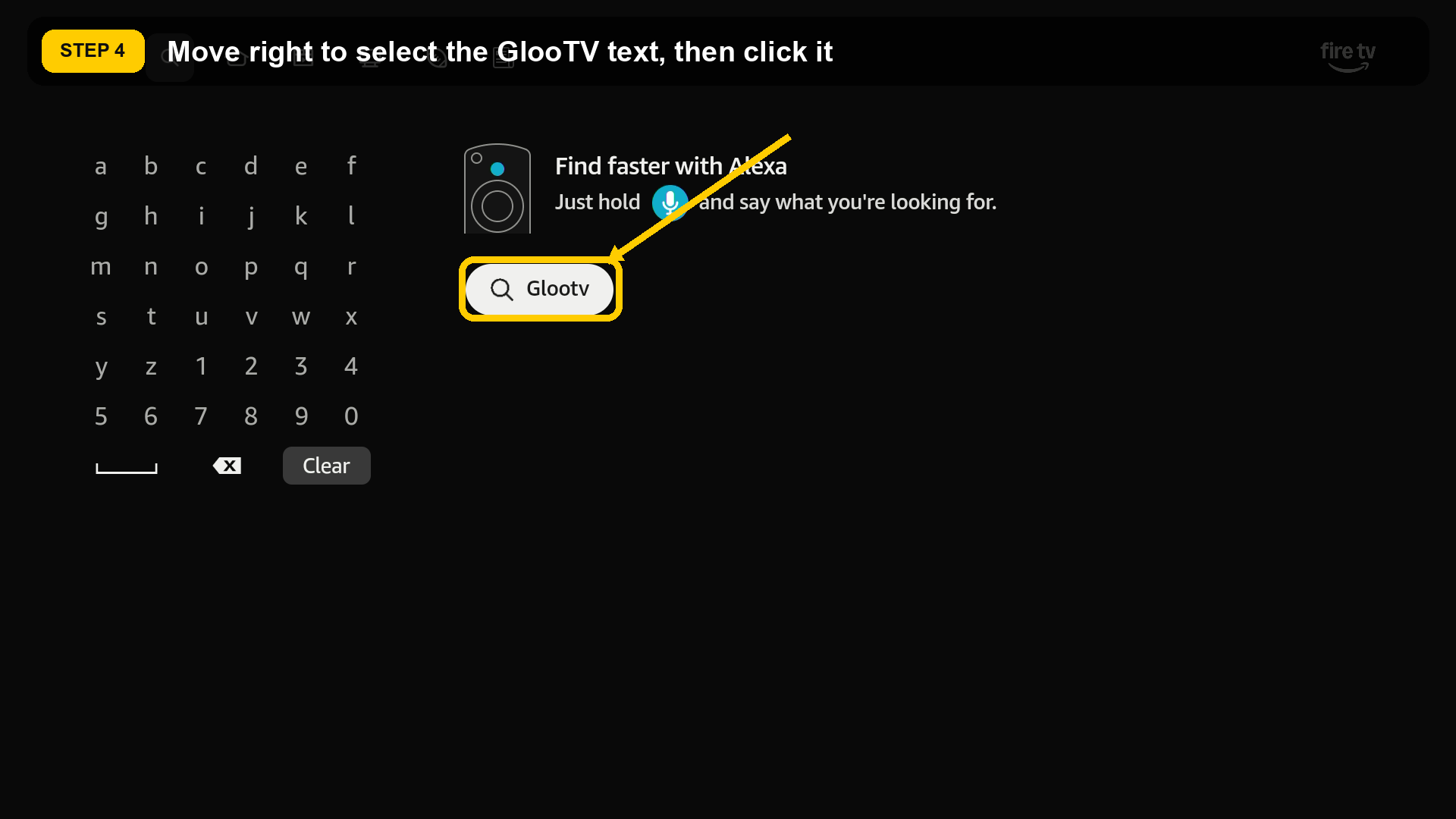
Type GlooTV.
- 4
Move right until the white GlooTV search suggestion is selected, then press the centre button on the remote.
The screenshot or diagram for this article has not been added yet.
Step 2: Find the app in the results
- 1
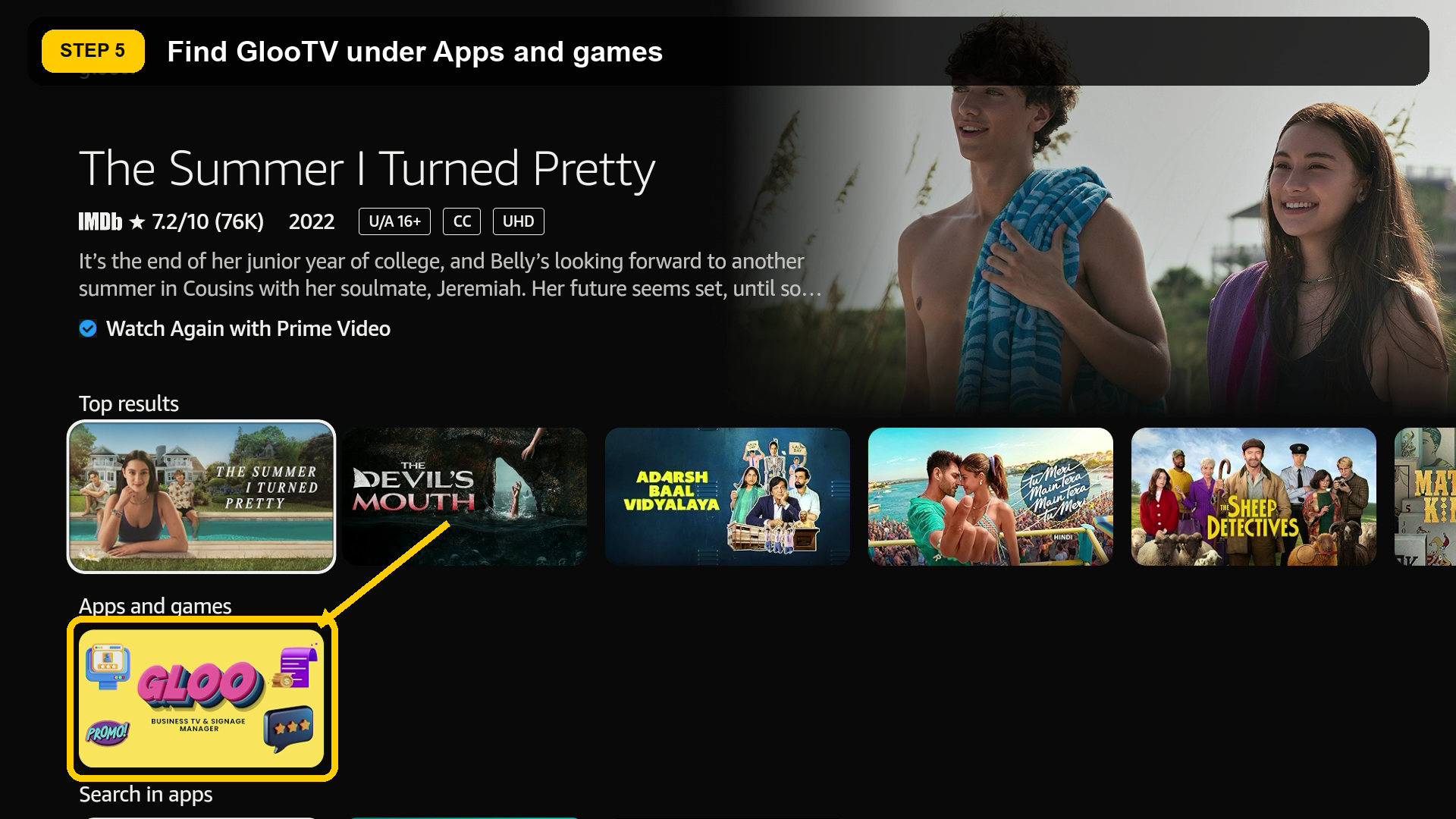
Scroll down to Apps and games.
- 2
Select the yellow GlooTV tile.
- 3
Confirm the listing title is GlooTV Business & Signage App.
The screenshot or diagram for this article has not been added yet.
Step 3: Download and open GlooTV
- 1
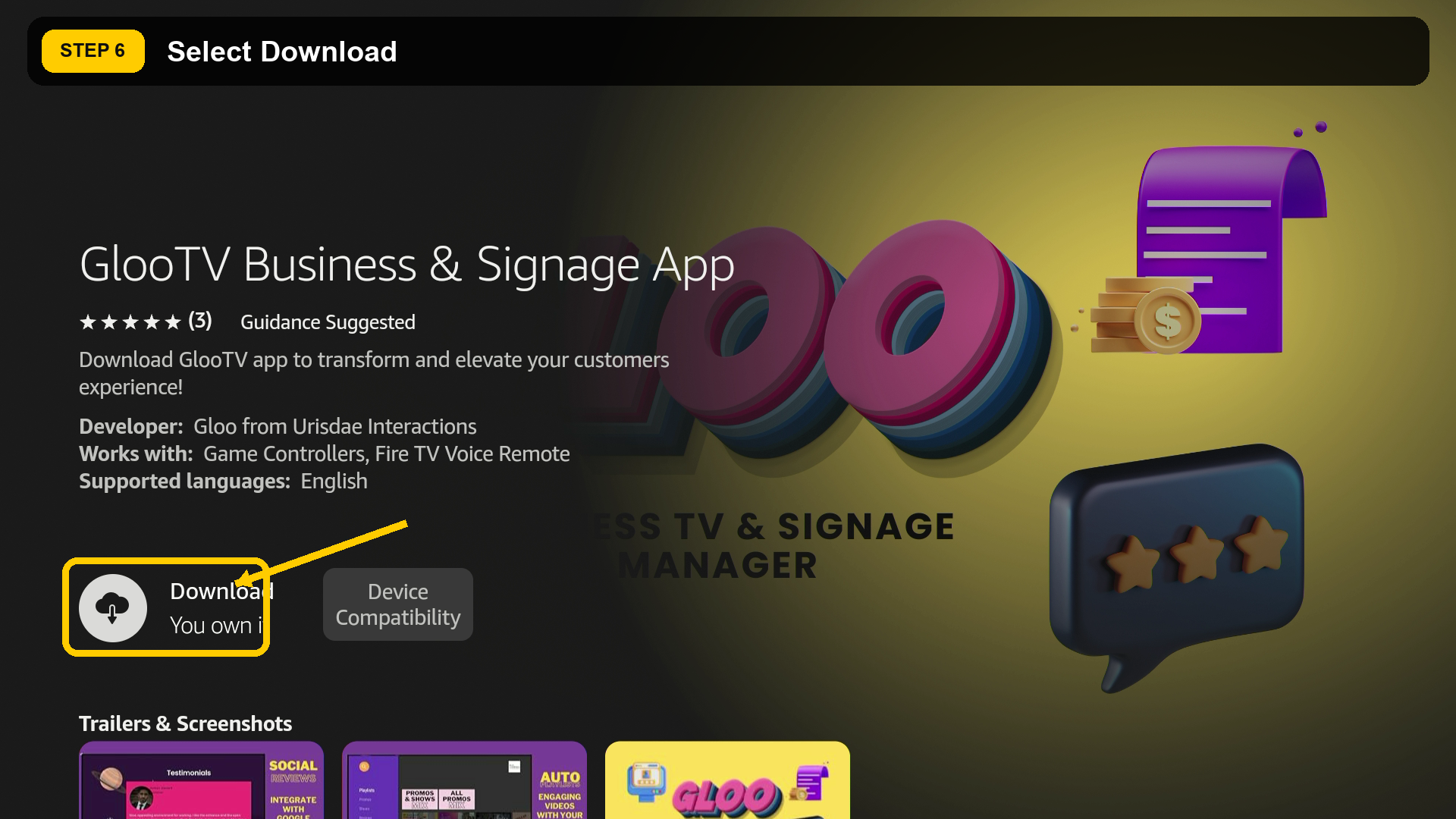
Select Download on the GlooTV listing.
- 2
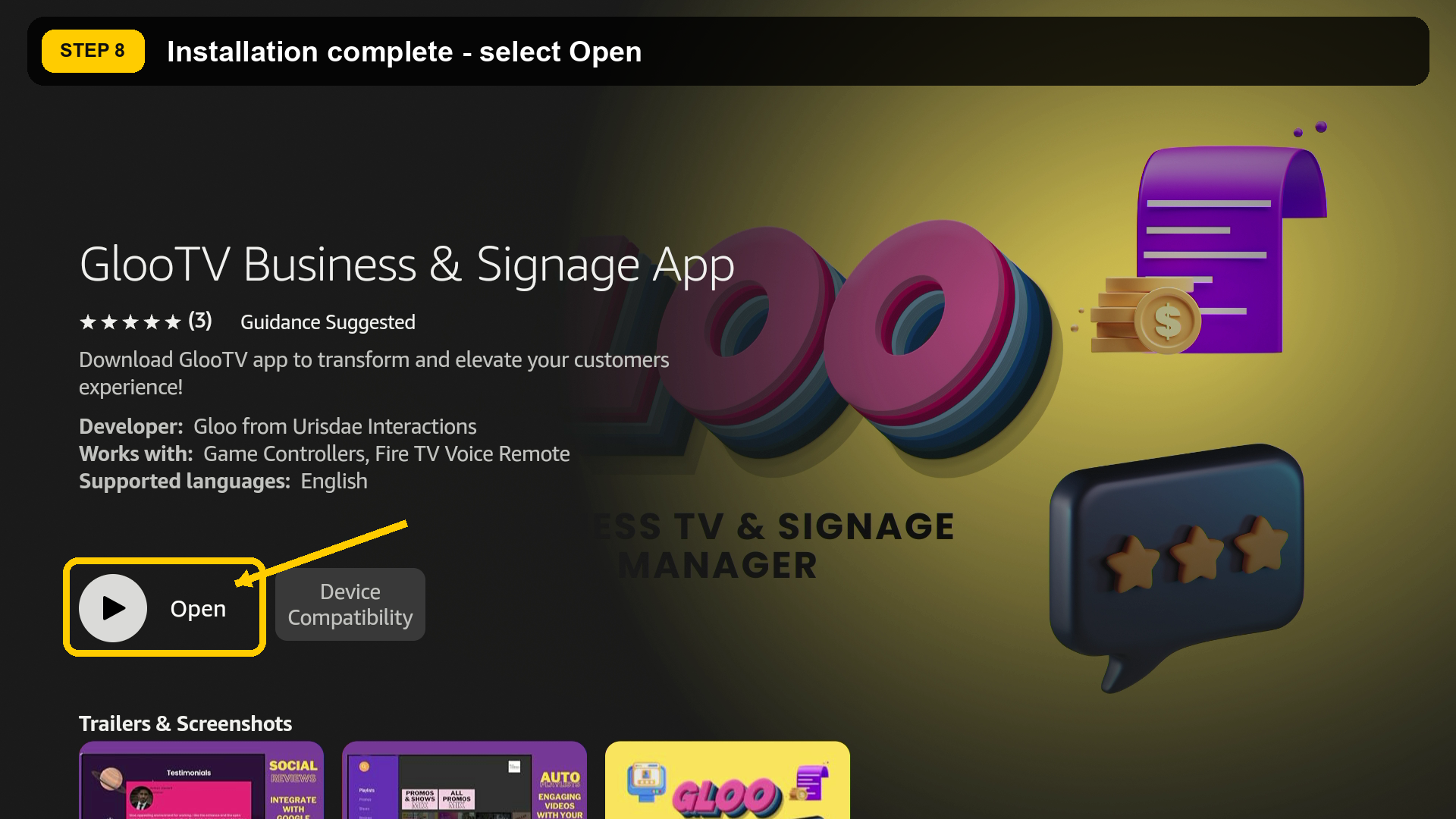
Wait while the status changes from Queued to Open.
- 3
Select Open.
The screenshot or diagram for this article has not been added yet.
The screenshot or diagram for this article has not been added yet.
Step 4: Enter the TV code
- 1
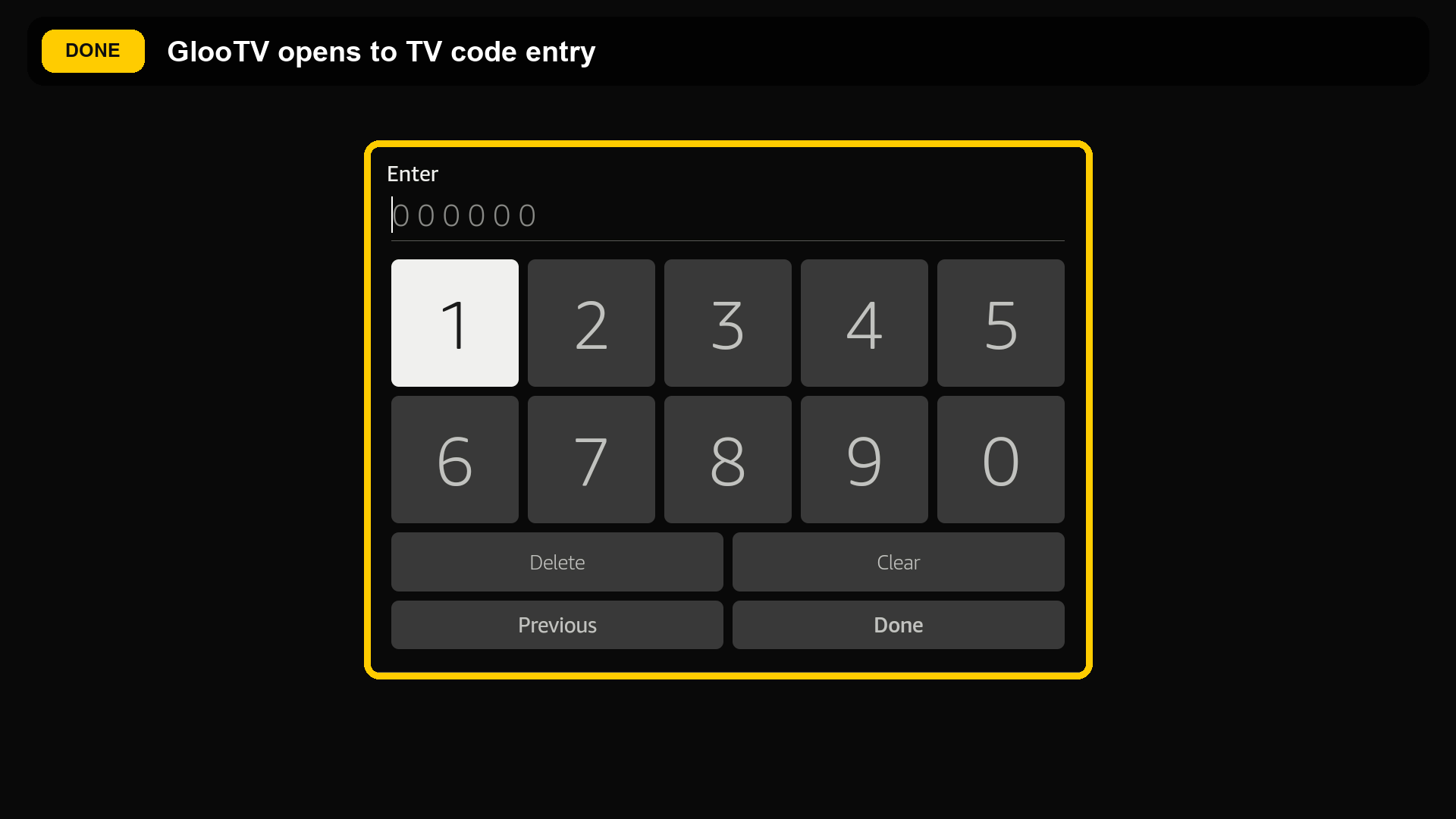
Use the on-screen number pad to enter the six-digit TV code from your GlooTV dashboard.
- 2
Select Done.
- 3
Wait for the TV to connect and load the available GlooTV content.
The screenshot or diagram for this article has not been added yet.
Installation is complete