Why is the same video repeating?
If you open a video directly from the Promos row on the TV, GlooTV plays that individual promo on repeat. It does not automatically move through the other files you have uploaded. This is different from opening a playlist.
One photo or video opened on its own. A standalone video repeats itself.
Use this when you want just that one item on screen.
A sequence of photos and videos. Items play in the order saved in the playlist.
Turn on Repeat Playlist to restart the sequence after the final item.
Uploaded does not mean added to the TV loop
On the web dashboard: add your items and turn on looping
Follow the bright red arrows. These are real GlooTV CMS screens, locally rendered with example data. Store Offers is an example playlist name; choose your own.
Before you start, sign in, select the correct business, and upload your photo or video. You can also open an existing item from All Promos. If you do not have a playlist yet, create one under Playlists first.
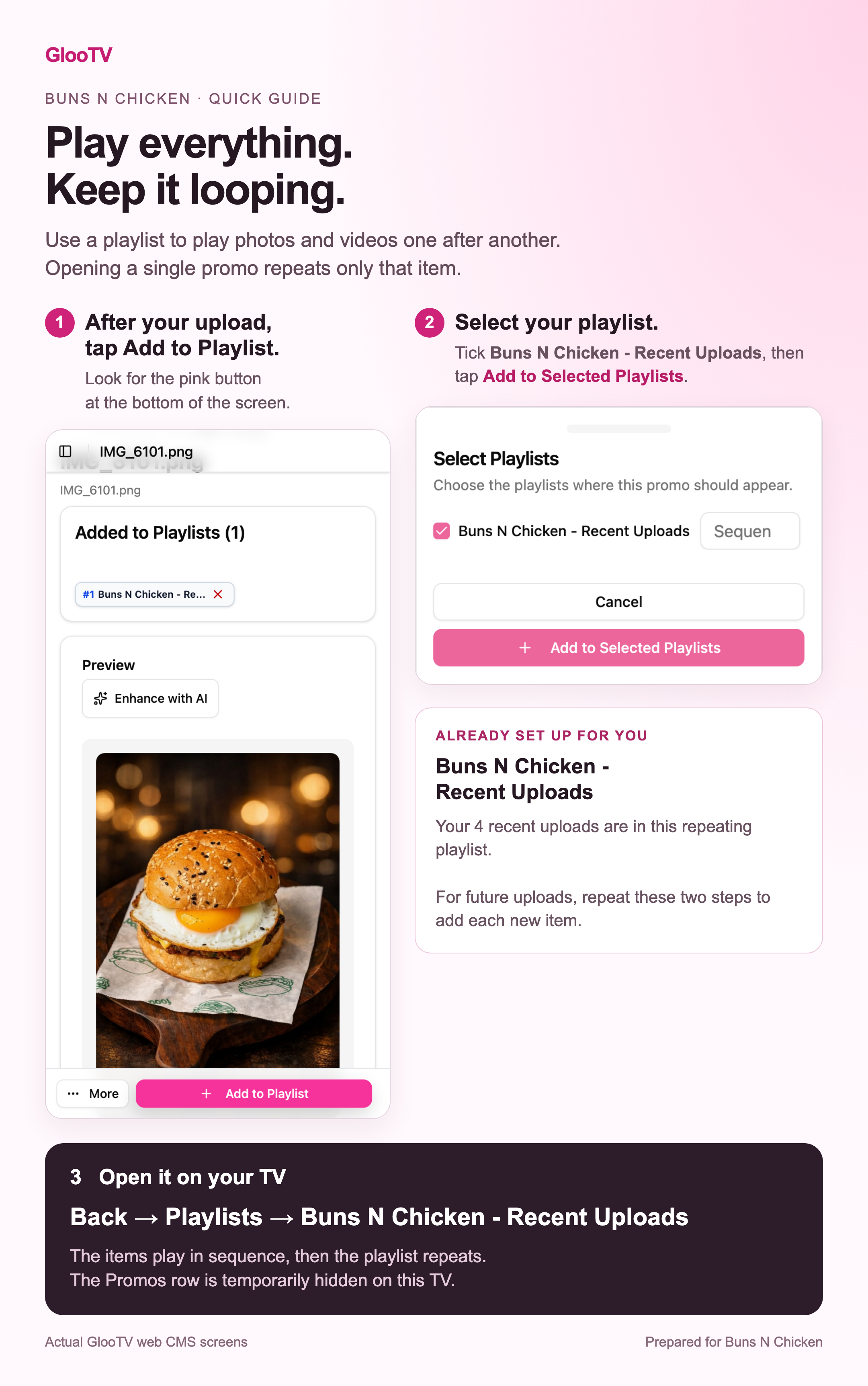
Open your promo and tap Add to Playlist
Open the uploaded photo or video. On a small screen, the pink Add to Playlist button stays at the bottom. This starts adding that one item to a playlist.
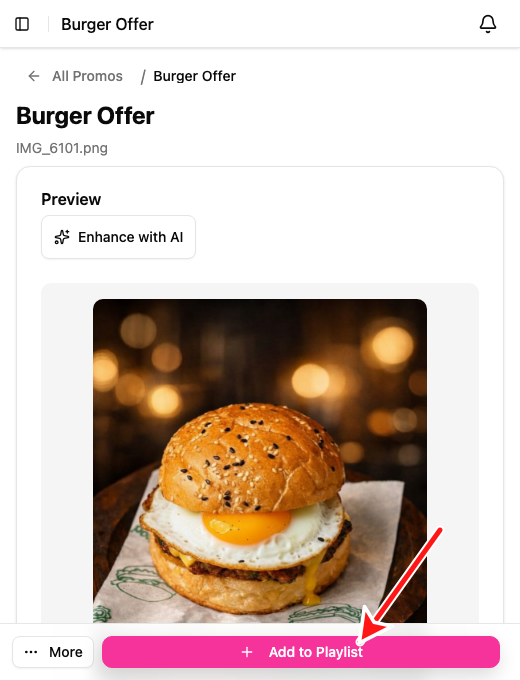
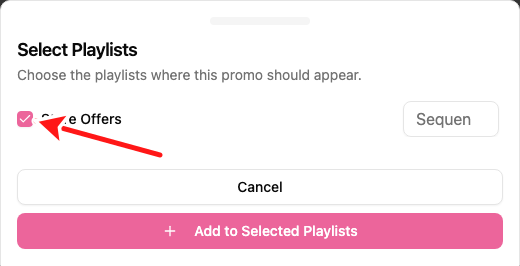
Tick the playlist you want
Select the checkbox beside your playlist name. Here the example is Store Offers. Choose the same playlist for every item you want to play in the sequence.
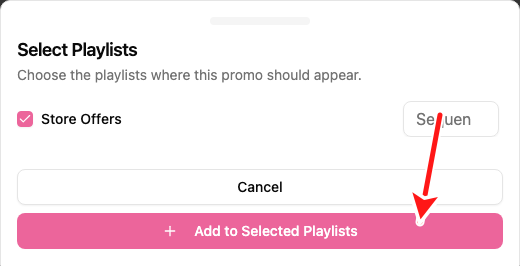
Confirm with Add to Selected Playlists
Tap Add to Selected Playlists to save the selection. Then repeat steps 1 to 3 for your other photos and videos. Adding one item does not add all your uploads.
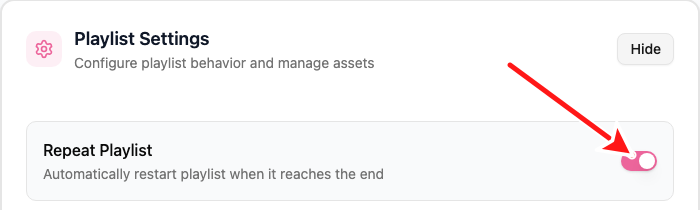
Check the item list and turn on Repeat Playlist
Open your playlist and confirm it contains at least two different items, in the right order. Expand Playlist Settings using Show if needed. Turn on Repeat Playlist, then reopen the playlist to check the switch stays on. Check the duration of any still images too.
Repeating a one-item playlist still shows one item
On the Android TV app: open Playlists, then your playlist
Use the directional buttons and centre OK button on your TV remote. The screenshots below are captured from GlooTV 42.12-play in an Android TV emulator, not a customer's live TV.
About these TV screenshots
Press Back, then select Playlists
Press Back on the TV remote to leave the repeating promo and return to the GlooTV dashboard. Use Up or Down to highlight Playlists in the left menu. Do not choose a single item from Promos if you want all items to loop.
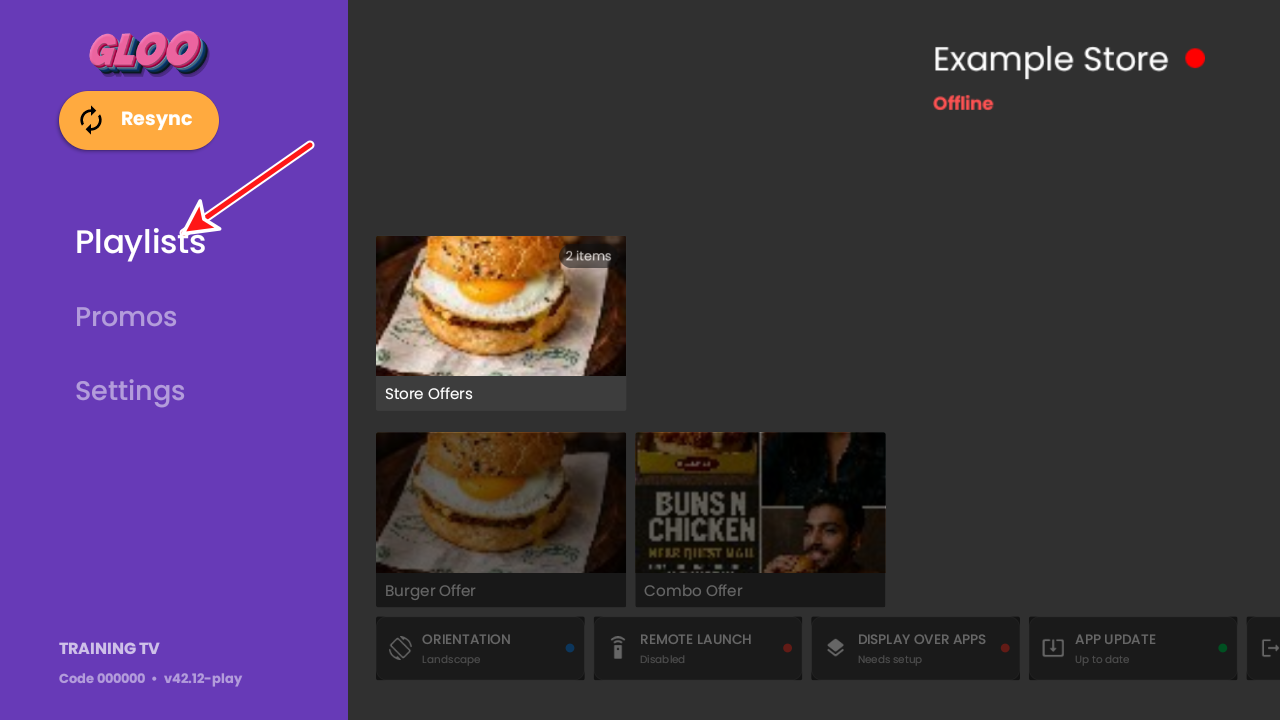
Move right to your playlist and press OK
Press Right to move onto the playlist cards. Highlight the same playlist you used on the web dashboard, then press the centre OK button. The Store Offers card here shows 2 items. Choose the playlist card, not one of the individual promo cards below it.
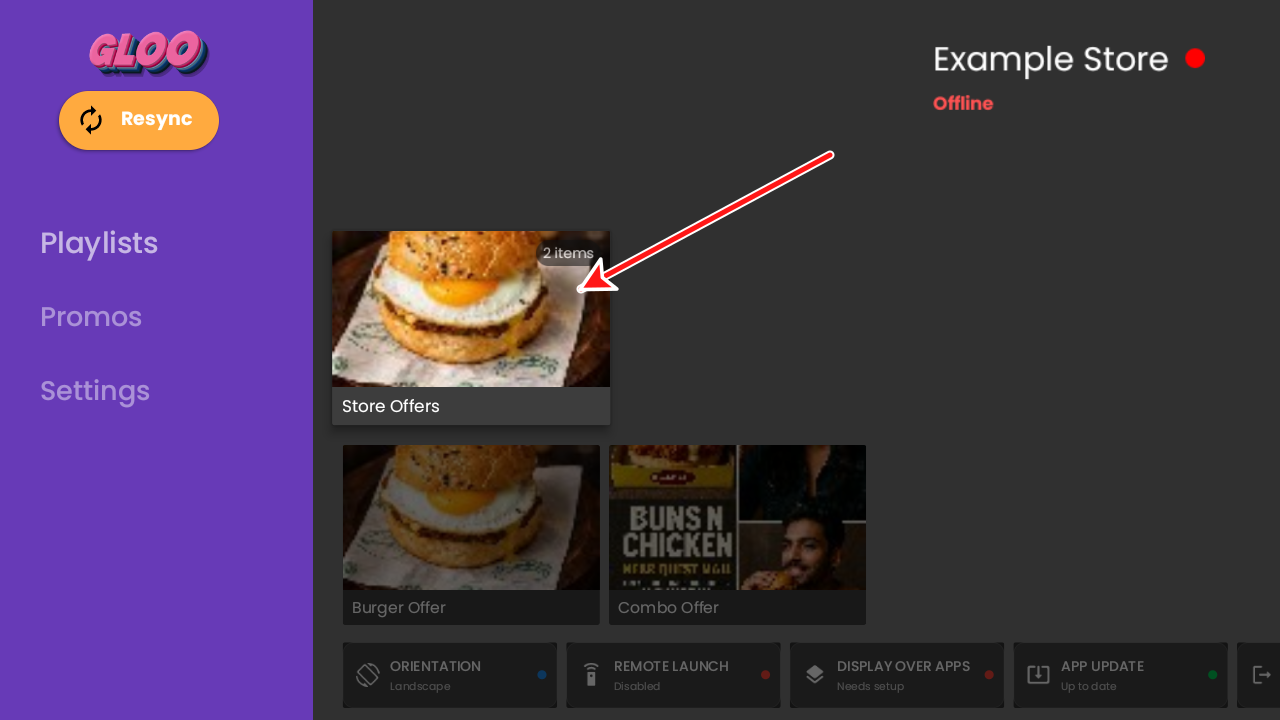
Final check: first item, next item, then back to the start
You can also use Play Now from the web dashboard for the intended TV, where its connection and remote-playback capability allow it. Make sure you are launching the playlist, not an individual promo.
If the playlist is not visible on the TV
Visual guide: where to tap
This worked example uses the actual web CMS screens prepared for Buns N Chicken. Choose your own playlist name when following it; the Add to Playlist and Add to Selected Playlists buttons are the same workflow.
The example contains account-specific details
The screenshot or diagram for this article has not been added yet.
Still seeing only one item? Check these first
- Only one item is in the playlist. Add every intended photo and video, then check the playlist item list again.
- The wrong thing was opened. Return to the TV dashboard and select the playlist from Playlists, not a file from Promos.
- The same file appears more than once. Review the sequence and remove unintended duplicate entries, rather than uploading another copy.
- An image stays up longer than expected. Check its saved display duration. A video needs time to finish before the next item starts; check any per-item playback settings too.
- The sequence plays once and then stops. Check that Repeat Playlist is enabled and saved.
- New items do not appear. Confirm they were added to the same playlist this TV is opening, check the TV connection, and reopen the updated playlist. Uploading alone does not update its item list.
- The TV cannot find the playlist. Check its visibility for that TV and whether the Playlists row is enabled.
- The next item becomes blank or shows an error. This may be a separate media or device issue. Note the item that fails and contact support instead of assuming the repeat setting is the cause.
For future uploads, keep using the same playlist
- 1Upload or open promo
- 2Add to Playlist
- 3Choose your playlist
- 4Add to Selected Playlists
- 5Check playback on TV
You do not need a new playlist for every upload. Keep a clearly named playlist for the screen, add new items to it, review the order, and remove expired offers when appropriate.
If a playlist with at least two different items still repeats only one, send support the TV code, playlist name, the names of the first two items, the GlooTV app version, and a photo or short video showing the problem. Say whether you opened it from Promos, Playlists, or Play Now, and whether the second item ever appeared. Do not share passwords or sign-in codes.